 Sync2 Flash demo-tutorial
Click on the underlined links to find out more.
Important Note: apply for Sync2 version 1.9 and older only.
 Create Google Calendar Sync profile
Create Google Contacts Sync profile
The First synchronization steps:
Prepare a shared data folder and remember the folder location path. After you install Sync2 to your PC for the first time, the creation of synchronization profile will begin. Make sure that your shared data folder is prepared. You can learn about some different types of shared folders solutions and their "good and bad" and "how to" by clicking here.
Create a new synchronization profile. If this is the first PC that you want to synchronize, proceed with Profile wizard (Step 1). Learn more by clicking here. If this is not your first PC, learn more by clicking here.
Synchronize this PC. The synchronization will start automatically after you finish the Wizard and the main Sync2 window will open. Depending on the amount of your synchronized folders data and speed of connection to the shared folder location, it may take from minutes to hours. The next synchronization process will only synchronize changes you have made in Outlook, which may only take from seconds to a few minutes.
Create a new Synchronization Profile for the first time on the first PC of your group
The creation of a new profile starts automatically after you install Sync2. In case you wish to create an additional Profile, you can start a new Profile Wizard from the main sync2 window or from the Right-Click menu of the Sync2 tray icon.
Profile Synchronization Setup Wizard steps:
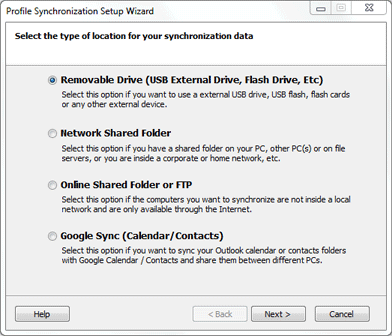
Select a type of data location and specify the shared folder address you have prepared. Choose one of these three standard types of data location:
Removable drive (USB Flash, Flash cards, USB External Hard Drive, etc.) for "offline synchronization"
Network shared folder (shared folder on your PC including shared with peer-to-peer software), on your LAN, other PC or on file servers, Live Messenger "My Sharing Folders", etc.
FTP or Online Shared Folder (4Team FTP Service)
Google Sync (for Calendar and Contacts folders only).
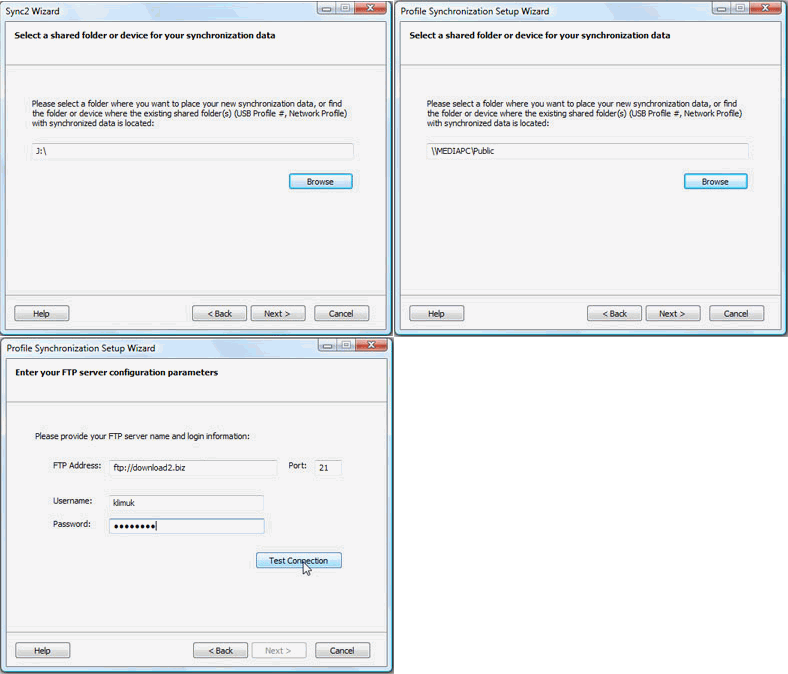
Specify the shared folder address/location or FTP server configuration parameters/Google Calendar Account login and profile name:
Note: Edit your profile name to be able to easily recognize the profile designation in future and your communicating devices (PCs), i.e.: USB Profile Home PC - Work PC, FTP profile - International, Network Profile - Coworkers.for Removable drive option,
by clicking "Browse" and selecting a preferred location from the Browse for folder window.
Click "Next >"
Sync2 will analyze the chosen location/address for existing synchronization data.
Choose a name for a new USB data profile. Click here for the screenshot.
for Network shared folder option,
by clicking "Browse" and selecting a preferred location from the Browse for network folder window.
Click "Next >"
Sync2 will analyze the chosen location/address for existing synchronization data.
Choose a name for a new Network data profile. Click here for the screenshot.
for Google Sync option:
provide your Google account login information; If you currently don't have a Google account you can register it by clicking here or on the "Register a Google Calendar/Contacts ..." button.
Click "Next >"
Important Note: For information about how to create a new Google Calendar Sync Profile click here. For Google Contacts Sync Profile click here.
profile name.
for 4Team FTP Sharing service option:
provide your login information (e-mail address);
click "Next". Allow this connection by your firewall or any antivirus products if the " Connection error" window pops-up and click "Next" again.
provide your password information (>6 letters or numbers);
Click "Next >"
The 4Team FTP service is all set and ready. Click here for screenshot.
for Custom FTP Server option:
provide your FTP Server name and login information; click "Test Connection". Allow this connection by your firewall or any antivirus products if the " Connection error" window pops-up and click "Test Connection" again.
Click "Next >"
Select or create a folder where you want your new synchronized profile data to be located and choose/edit the
Important Notes: You will not be able to change these settings later.
Click "Next >"
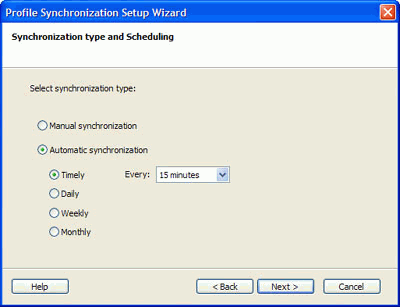
Set the Synchronization type and scheduling. The two types of synchronization are as follows:
Manual - Preferred synchronization type for the Removable drive type of data location. Choose this type if you prefer to fully control the synchronization process and your data location is not always available (i.e. dial-up internet connection, removable drive, etc.)
Automatic synchronization - a worry-free synchronization type for the network shared folder and FTP type of data location. The program will automatically download-upload and synchronize updates from the synchronized data location even if your Outlook is closed. Choose from a wide range of scheduling options (Hourly: every 15 min recommended)
Click the "Next >" button
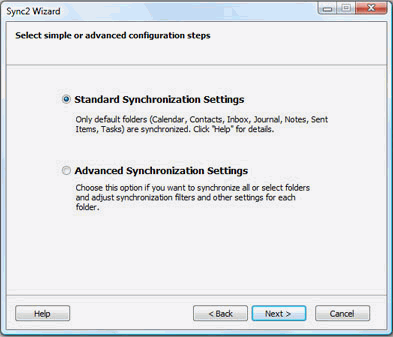
Choose from the first two offered configuration types and click the "Next >" button: (this step is not available for the Google Calendar Sync profile)
Standard - use this type if you are a beginner and plan to synchronize the default Personal Outlook folders only (Calendar, Contacts, Inbox, Journal, Notes, Sent Items, Tasks)
Advanced - use this type if you are an advanced user or plan to synchronize the selected or all folders, choose synchronization filters, a profile name and other settings.
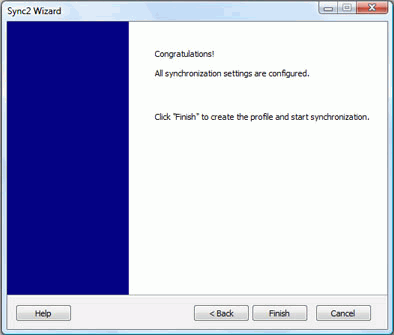
If you have chosen the Standard Synchronization Settings of Profile Wizard, you will receive the " Finish Message", and after you click Finish your synchronization process will begin.
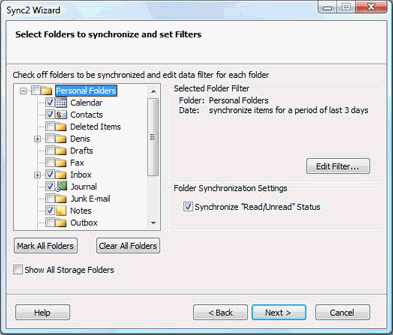
Otherwise (Advanced type of Settings), the "Select Outlook folders to synchronize and set Filters" window will open. Select folders that you are planning to synchronize, adjust their filters by clicking Edit filter on each selected folder. You can add an additional folder later from the Profile settings.
Note: Access the non-default personal or Exchange Public folders by checking the "Show All Storage Folders" box. Synchronize the "Read/Unread status" for a selected folder by checking the box in "Folder synchronization Settings".
Click "Next >"
6. Click "Finish" to perform the synchronization process for the created Profile.
Congratulations! All synchronization settings are configured. You are now able to start adding new PCs to existing Profiles or create a new profile for your family, friends, and coworkers.
Adding another PC to an existing synchronization data Profile of your group (for Google Calendar Sync profile click here, for Google Contacts click here)
After you perform synchronization with your first PC, you will have the following data that is required to set up synchronization on your second or your friend's PC:
Synchronized data location
Address of the shared folder location (path)
Removable drive, if you are using this type of synchronized data location
In case of custom FTP - the path (folder location/address) and login information.
In case of 4Team FTP sharing Service - login (e-mail address) and password.
This information will always be available to you from the Profile settings, which can be accessed from the main Sync2 window. Click here for the screenshot. Send this information and the steps that follow to your friends and coworkers, and remember the profile settings for your new PC synchronization.
Important Note: If you are using a Removable drive as your synchronized data location, the actual "Drive Letter or path ..." may be different on other PCs
Adding another PCs to an existing synchronization Profile (group). Follow these steps:
Choose the type of the shared folder location. When you are adding a new PC to an existing profile, you will need to import the existing Profile from the existing data location. The import of a new profile starts automatically after you install Sync2. In case you already have other Profiles, you can start importing a new Profile Wizard from the main sync2 window or from the Right-Click menu of the Sync2 tray icon.
In the first step of synchronization profile setup wizard choose the shared folder location from the three available options and click the "Next >" button
Note: If you use a Removable drive as a type of data location, connect your removable drive to your PC. Prepare your profile settings information. If you use a network or FTP shared folder location, make sure that you are connected to your LAN or/and Internet and that you can access the shared folder from the windows explorer.
Click "Next >"
Specify the shared folder address/location or FTP server configuration parameters / Google Calendar Account login
for Removable drive option, by clicking "Browse" and selecting a preferred location from the Browse for folder window.
for Network shared folder option, by clicking "Browse" and selecting a preferred location from the Browse for network folder window.
for 4Team FTP Sharing service option:
provide your login information (same e-mail address that you used in this profile);
click "Next". Allow this connection by your firewall or any antivirus products if the " Connection error" window pops-up and click "Next" again.
provide your password information (same password that you used in this profile);
Click "Next >"
The 4Team FTP service is all set and ready. Click here for screenshot.
for custom FTP Server option:
provide your FTP Server name and login information; click "Test Connection". Allow this connection by your firewall or antivirus products if the " Connection error" window pops-up and click "Test Connection" again.
Click "Next>"
Sync2 will analyze the chosen location for existing synchronization data.
Select a folder where synchronized profile data to be located (i.e.: FTP Profile #1). Click here for the screenshot.
Skip 3, 4.
for Google Calendar Sync option
provide your Google account login information;
Click "Next >"
Select Google Calendar folders that you want to sync with your Outlook
Click "Next >"
Choose a structure of Google Calendar folders in Microsoft Outlook among the following three different types: Default, Sub-Calendars and Advanced.
Default...: Your main (personal folder; usually having your name) Google Calendar will be synchronized with your default Outlook calendar; Other Calendars will be created under the default Outlook Calendar. If you choose this option, you will not be able to adjust advanced filters and other options for the first synchronization.
Sub-Calendars...: All Google Calendars will be created under the default Outlook Calendar. If you choose this option, you will not able to adjust advanced filters and other options for the first synchronization.
Advanced...: Choose this structure if you want to select Outlook folders to be assigned to each Google Calendar and adjust synchronization filters.
skip next steps 3., 4.
for Google Contacts Sync option
provide your Google account login information;
Click "Browse >".
Choose Outlook folder that you want to add and sync to your Google Contacts Account. In the "Choose Folder" dialog select a folder you want to add to your Google Contacts. Click "OK".
Click "Next >"
skip next steps 3., 4.
Important Note: For detailed information about how to create a new Google Contacts Sync Profile on new PC click here.
Click "Next >"
Sync2 will analyze the chosen location/address for existing synchronization data. Click here for the screenshot. (this step is not available for the Google Calendar Sync profile and for 4Team FTP Sharing service option)
Select the synchronization data profile from the available profile list. Click here for the screenshot. (this step is not available for the Google Calendar Sync profile and 4Team FTP Sharing service option)
Note: If no profile is available, click "Back" and correct the (find) folder location where your shared folder with the profile data is available. Possible folder names in your shared folder are: FTP Profile #, Network profile #, USB profile #. If you are still not able to find the shared folder: go to the previous synchronized PC, open Sync2, this information will be available to you from the Profile settings, which can be accessed from the main Sync2 window. Click here for the screenshot.
Note2: If you are using a Removable drive as your synchronized data location, the actual "Drive Letter or path ..." may be different on other PCs.
Click "Next >"
Set the Synchronization type and scheduling. The two types of synchronization are as follows:
Manual - Preferred synchronization type for the Removable drive type of data location. Choose this type if you prefer to fully control the synchronization process and your data location is not always available (i.e. dial-up internet connection, removable drive, etc.)
Automatic synchronization - a worry-free synchronization type for the network shared folder and FTP type of data location. The program will automatically download-upload and synchronize updates from the synchronized data location even if your Outlook is closed. Choose from a wide range of scheduling options (Hourly: every 15 min recommended)
You are almost done.
Click the "Next >" button
Click "Finish" to start synchronization of the loaded profile. The Main Sync2 dialog will open. You can close this dialog and resume your other work, while Sync2 synchronizes your data in the background. If folders that you synchronize on this PC are empty or totally identical, your synchronization process will finish almost immediately. If the data of the synchronized folders is different, the difference on this PC will be copied to the first PC during the next synchronization process. In case of duplicates, a special duplicate management dialog will appear. To learn more about how to deal with them, click here.
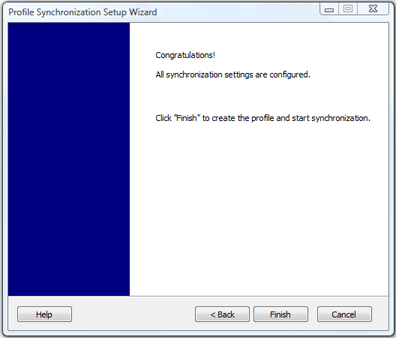
Congratulations! Your first synchronization cycle is done. You are now able to start adding more new PCs to existing Profiles or create a new profile for your family, friends, and coworkers. If you experience any discomfort and would like to share your ideas about how to improve our product, we are here to help you.
Create Google Calendar Sync profile
Create Google Contacts Sync profile